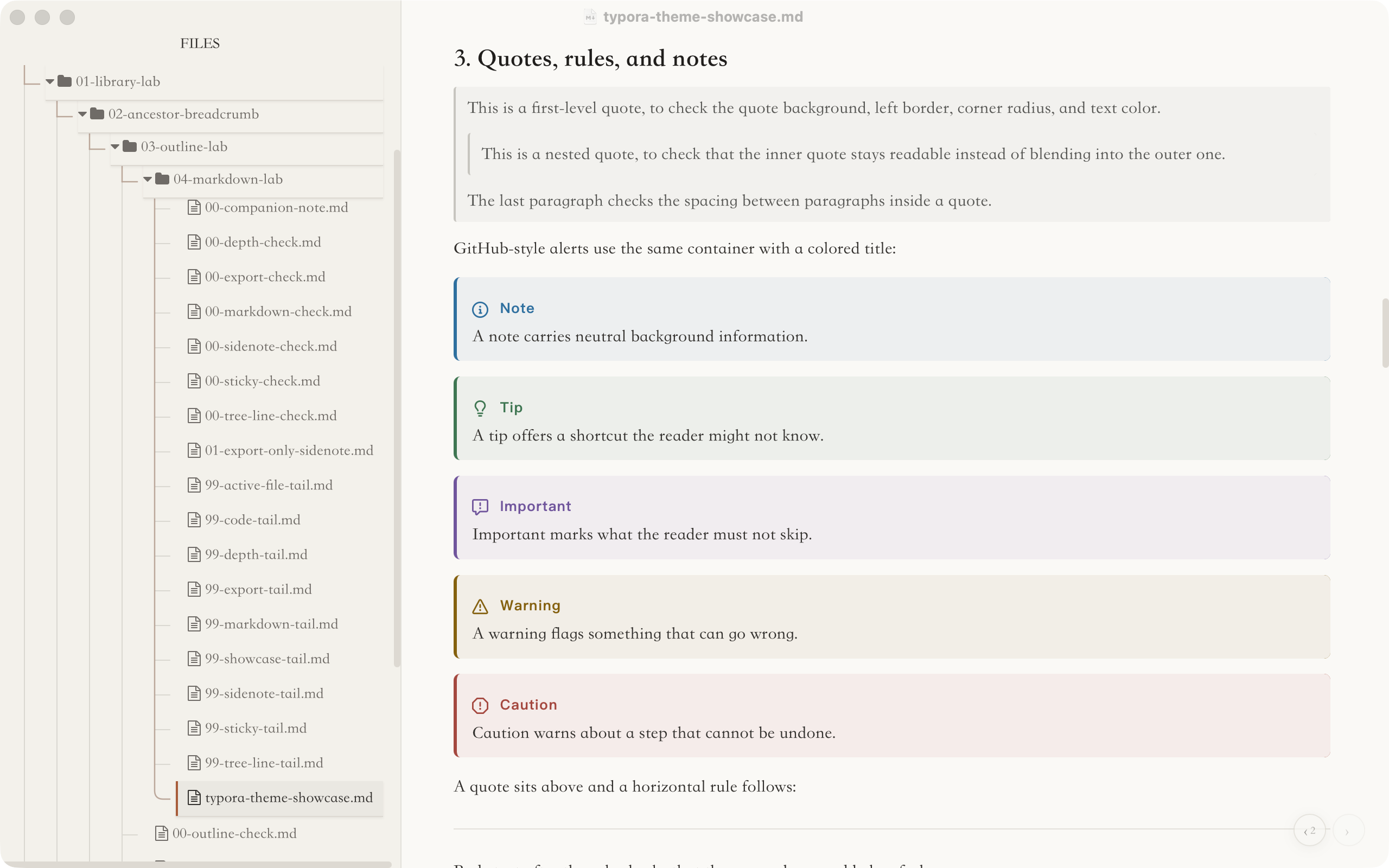
A theme for long-form and technical notes in Typora: warm paper tones, one accent colour, and a quiet reading column. It is for people who write long documents in Chinese, English or both, and who spend the day in the file tree and the outline as much as in the text. It does not stop at the body text. It carries the same look through the parts of Typora people use all day: tables, code blocks, the file tree, the outline, sidenotes, and HTML and PDF exports.
The aim is not a pixel copy of a web page. It is the restraint of a Claude-like reading page brought into Typora: low saturation, soft contrast, generous spacing, and colour kept for the few things that need it.
- For
- long-form and technical writing in Typora, in Chinese, English or both
- Runs on
- Typora on macOS, Windows and Linux; on Windows, set the window style to Unibody
- Latest
- v1.2.2, 26 March 2026;
mainis 28 commits ahead - License
- MIT; it began as a fork of Muyiiiii/Typora_Claude-Like_Theme
- Built with
- plain CSS, assembled from tokens and one shared stylesheet by a Node script
- Install
- through Typora Plugin Lite, or copy two CSS files into Typora’s theme folder
Light and dark
Light and dark are two sets of tokens over one shared stylesheet. They are tuned separately, not inverted: contrast, border strength and code colours are set for each. Light is warm paper, #faf9f6, with ink at #34312e and a rust accent, #a85d3b. Dark is #1f1e1c with ink at #d7d4cf, and the accent lifts to #e0a07a so it holds up against the darker ground.
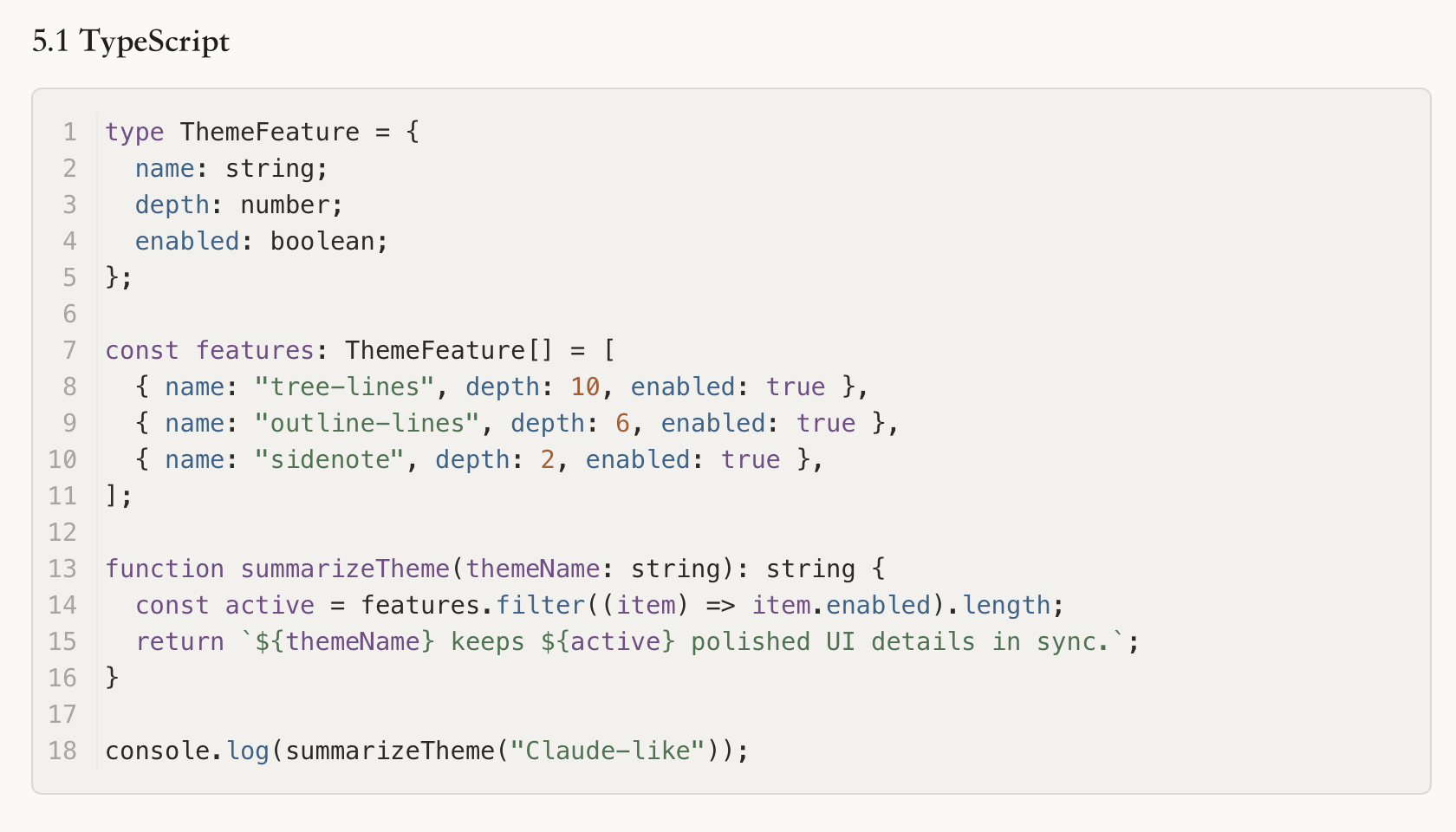
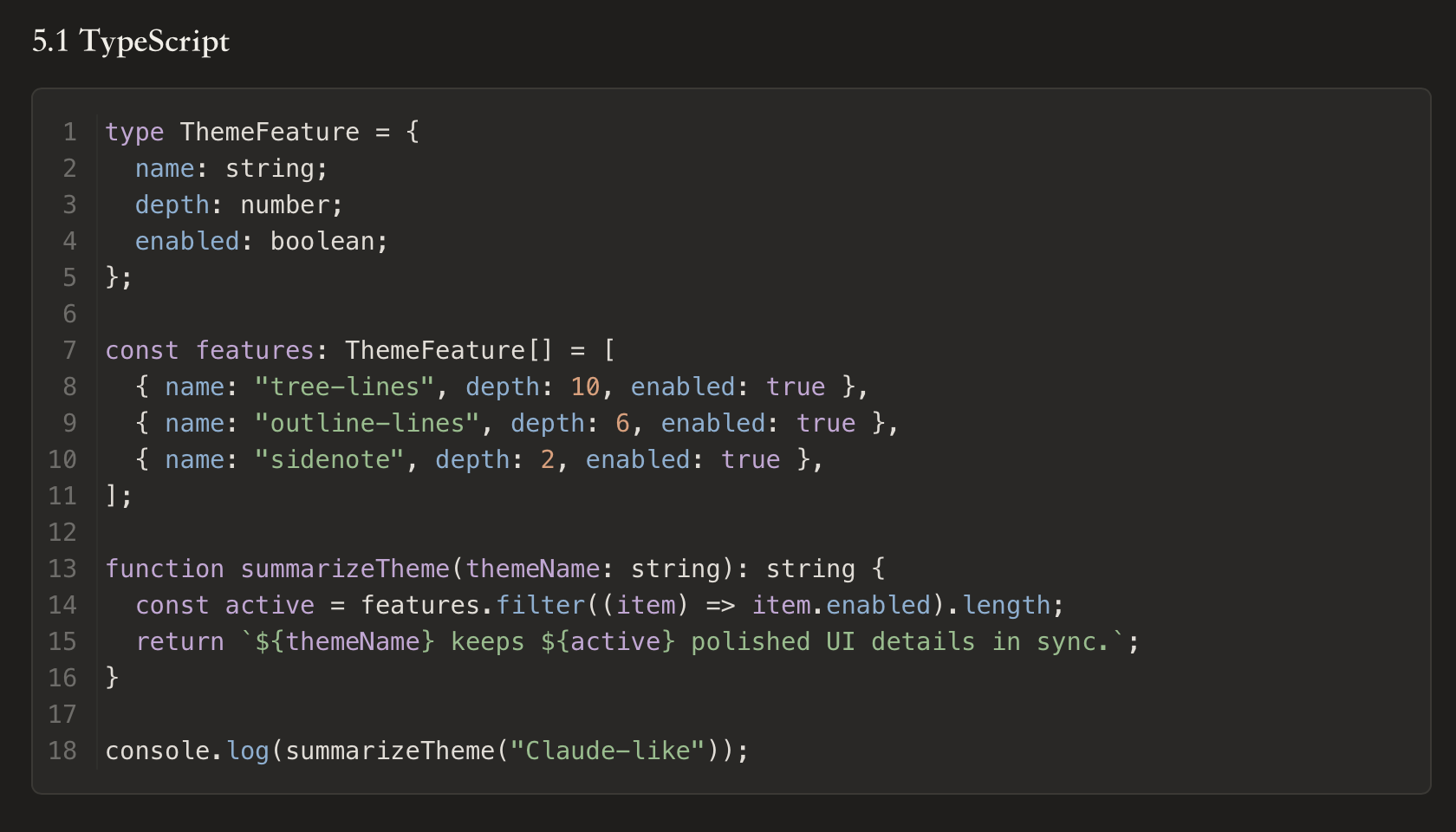
A test holds the contrast. Body text must reach 7:1 against the page, and muted and accent text 4.5:1, in both variants. The current tokens give 12.3:1, 5.0:1 and 4.6:1 in light, and 11.3:1, 5.7:1 and 7.5:1 in dark. Alerts, tables and code use their own colours, but each stays subordinate to the one accent.
Reading rhythm and type
Type for Chinese and Latin together
The body uses a CJK serif stack with Songti SC first, then Noto Serif CJK SC and Source Han Serif SC. Headings share it; the sixth level, the one most likely to blur into body text, switches to the UI face at 0.91em. Interface text uses PingFang SC and its fallbacks, down to Microsoft YaHei and Segoe UI on Windows. Code uses Menlo, Monaco, SF Mono or Consolas, then Sarasa Mono SC, a monospace face that includes Chinese.
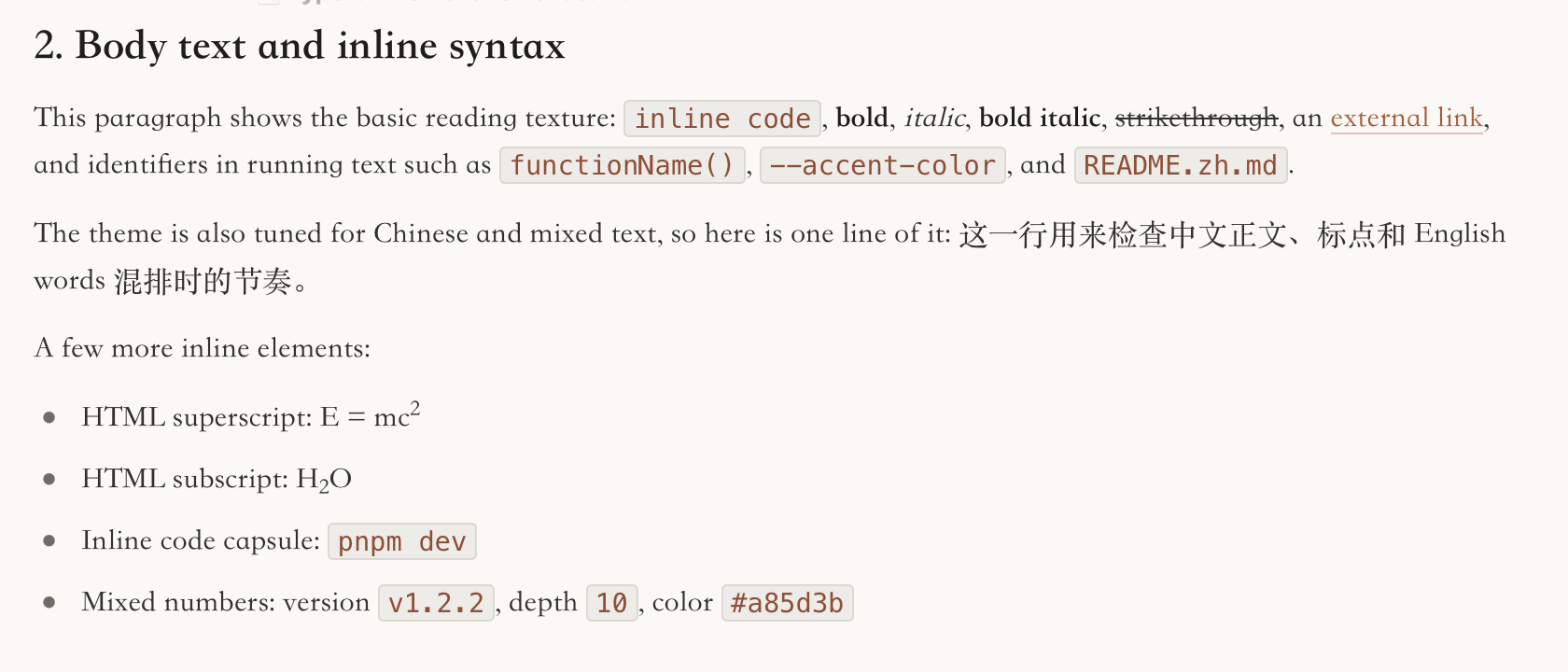
The rhythm is compact and fixed in the test: body line height 1.58, paragraphs 0.74em apart, second-level headings at a line height of 1.22 with 1.72rem above them. Without a width plugin the writing column is 860 pixels. Tables get one set of borders, tabular figures so numbers line up, and a faint row hover. Finished tasks turn softer and struck through. Quotes, alerts, code and the [TOC] block share two corner radii, 3 and 6 pixels, and neutral surfaces, so the page reads as one material. This site’s type follows the theme too: the same heading ratios, line height and faces for Chinese and code.
A file tree you can follow
Ancestors that stay in view
Typora’s file tree loses its place in a deep folder: scroll down and you no longer see which folder you are in. The theme pins the open file’s ancestor folders to the top of the tree as you scroll, one under the other, for up to ten levels.
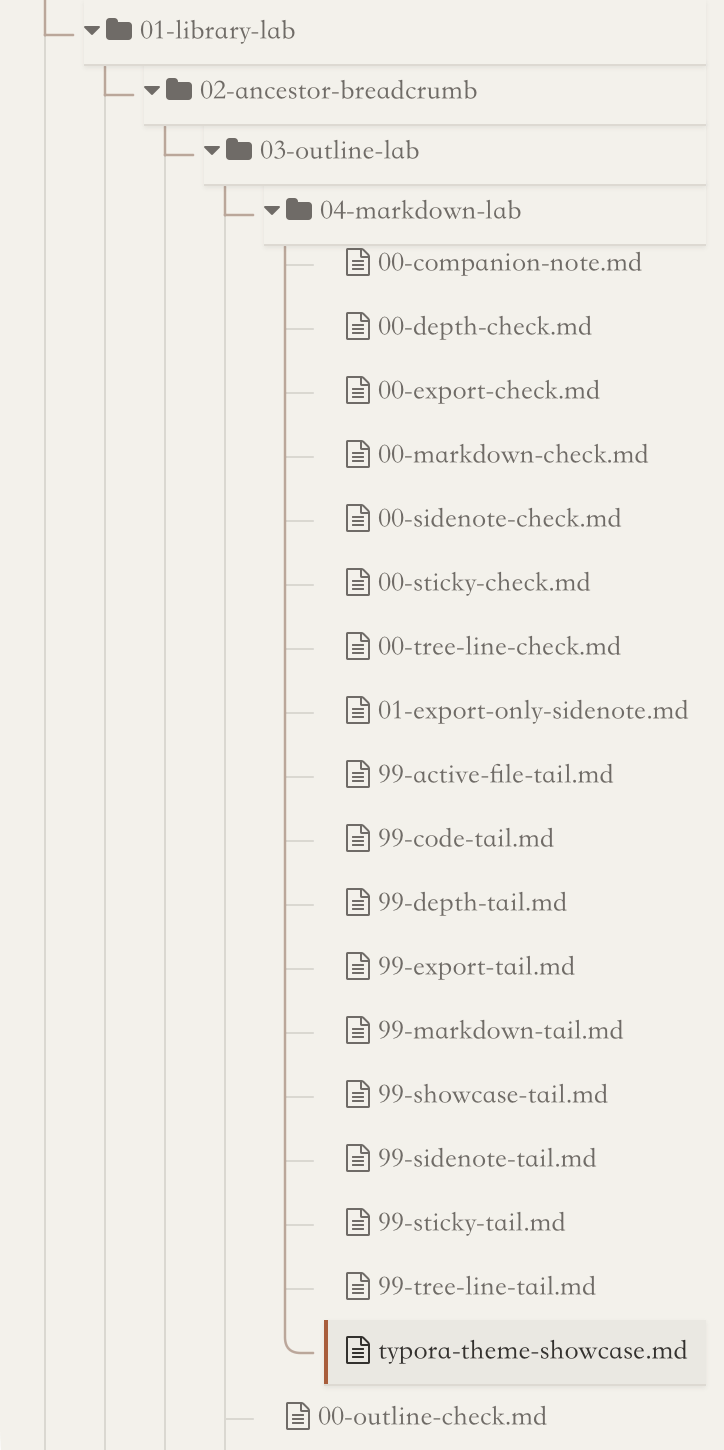
The open file itself is sticky too, and it is marked with an accent bar. Each folder joins its children with a vertical stem, a short connector, and a rounded corner on the last child.
It is all CSS: position: sticky on the folders that contain the active file, found with :has(), and one rule per depth to stack them. In these screenshots the guide lines come from the Tree Guides plugin in Typora Plugin Lite, which draws one stroke per folder and lights the open file’s branch. Without the plugin, the theme draws its own connectors.
The outline
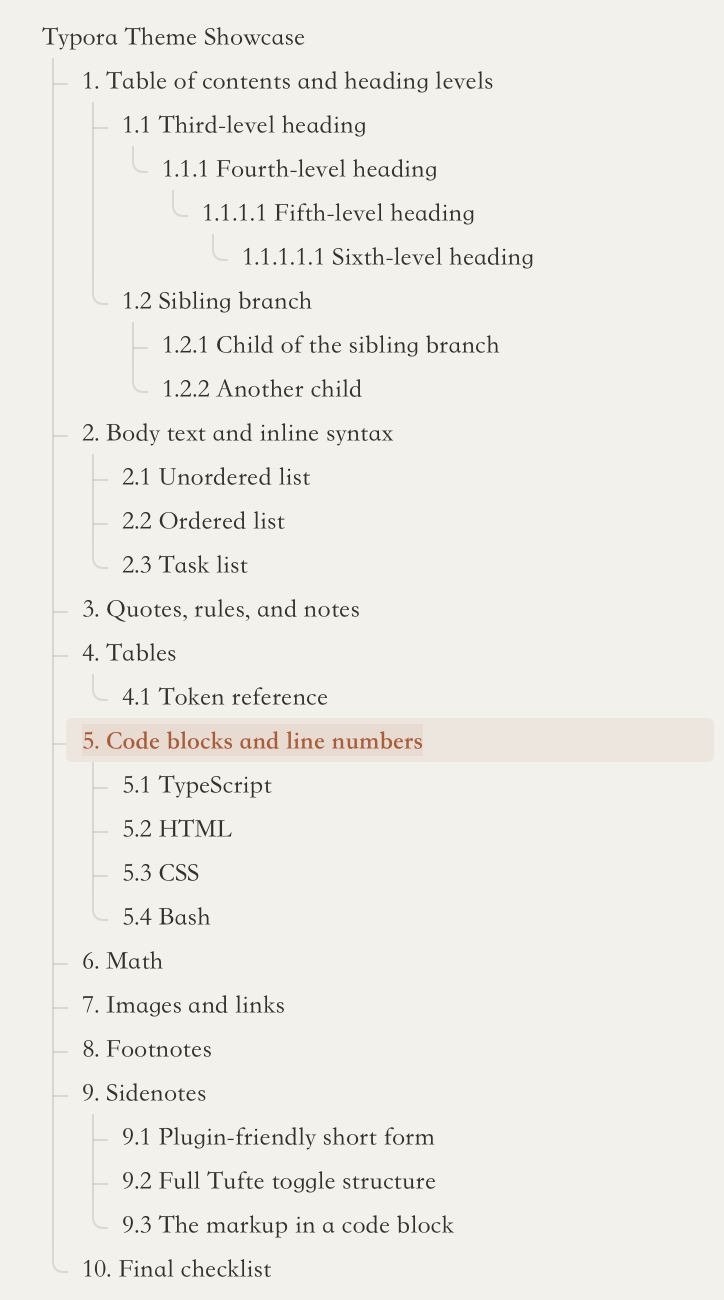
The outline gets the same treatment: a stem for each branch, a corner where a heading ends a group, and quiet hover and active states. A note with six heading levels and sibling branches still reads as a tree at a glance, and the current section stands out without a bright block of colour.
Alerts
Typora parses GitHub-style alerts; the theme gives each of the five kinds its own muted colour for the bar and title, on a surface tinted at 7 percent: blue for a note, green for a tip, violet for important, ochre for a warning, brick for caution. The picture at the top of this page shows all five in the light theme. They use the same container as a quote, so a page full of alerts still looks like one document. The Markdown is GitHub’s:
> [!NOTE]
>
> A note carries neutral background information.

> [!TIP]
>
> A tip offers a shortcut the reader might not know.

> [!IMPORTANT]
>
> Important marks what the reader must not skip.

> [!WARNING]
>
> A warning flags something that can go wrong.

> [!CAUTION]
>
> Caution warns about a step that cannot be undone.
Code with line numbers
When line numbers are on in Typora’s preferences, Typora draws them in a CodeMirror gutter that it fills lazily, so numbers lag while you scroll fast, and a selection could bleed into the number column. Since v1.2.2 the theme hides that gutter and draws the numbers itself with CSS counters on the line elements. They appear as soon as a line exists, never enter a selection or the clipboard, and sit behind a thin divider the caret stops at.
The gutter is only as wide as each block needs. This is the rule that sizes it:
.md-fences-with-lineno {
    --tpl-lineno-digits: 4;
    --tpl-lineno-padding: 1.4em;
    --code-line-number-gutter-width:
        calc(var(--tpl-lineno-digits) * 1ch + var(--tpl-lineno-padding));
}
.md-fences-with-lineno .CodeMirror-sizer {
    margin-left: var(--code-line-number-gutter-width) !important;
}
1ch is one digit in a monospace face, so N digits reserve exactly N columns. Fence Enhance from Typora Plugin Lite sets --tpl-lineno-digits for each block from its real line count, never below two. That is why the 18-line block above has a two-digit gutter. Without the plugin the theme reserves four.
Sidenotes, wide and narrow
A sidenote is a span in the Markdown:
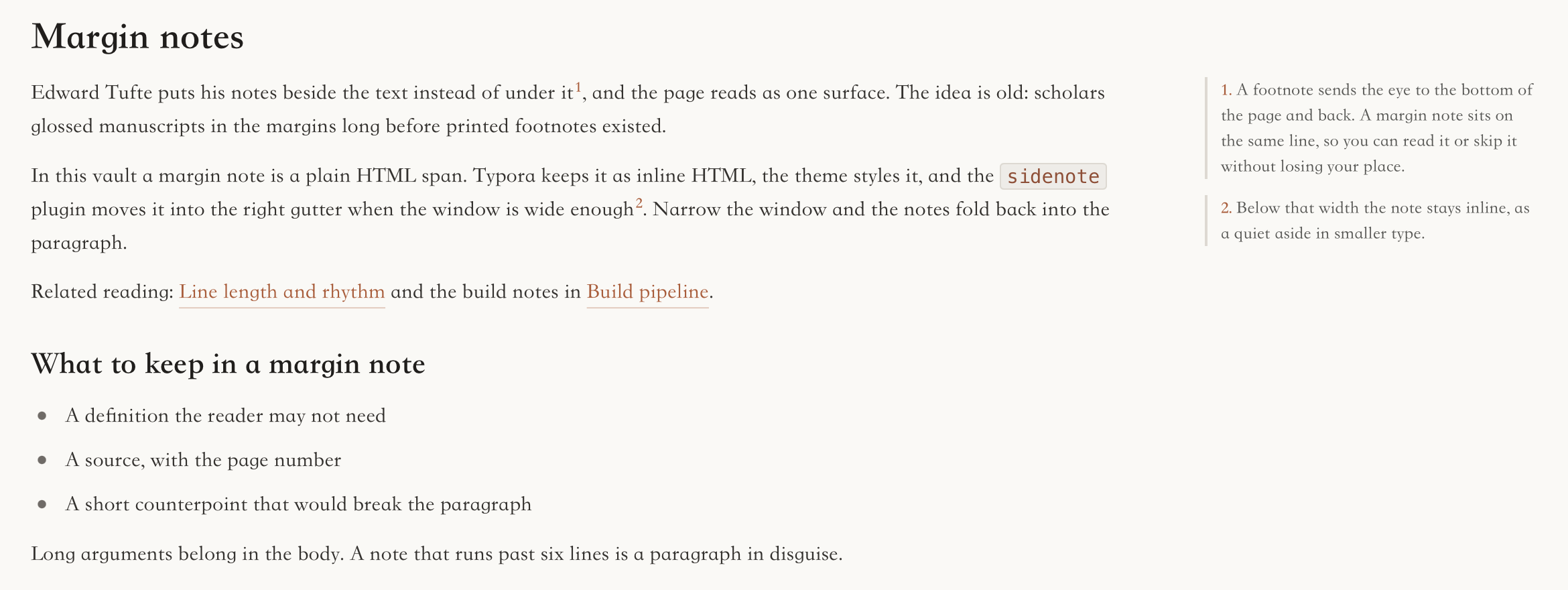
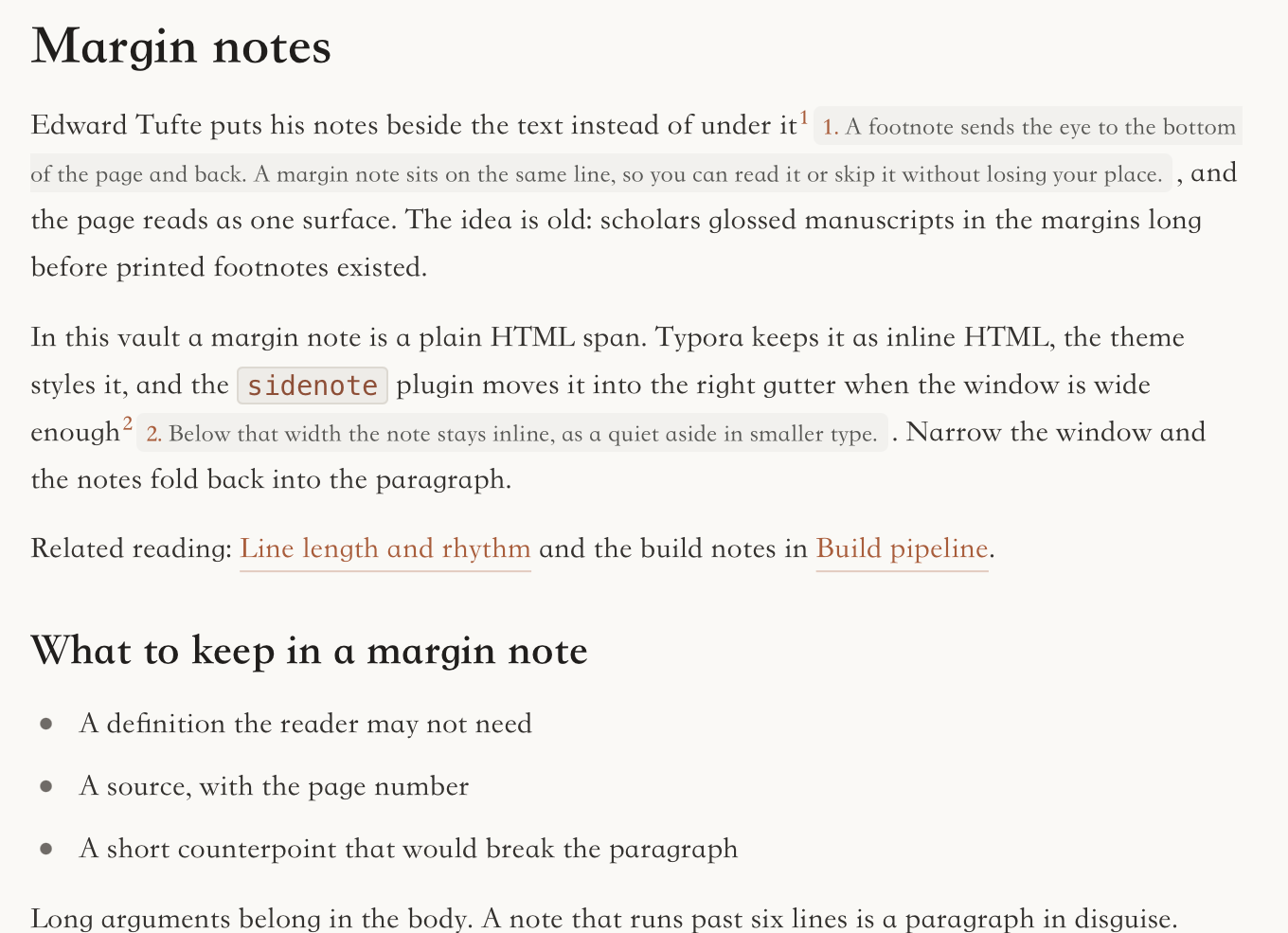
Body text<span class="sidenote">This is a sidenote.</span> body continues.In exported HTML and PDF the theme floats these notes into the right margin when the page is at least 1200 pixels wide. Below that, a plain sidenote stays inline; a note written with Tufte’s full toggle structure folds behind its number and opens when you click it. Inside the Typora editor CSS cannot see the class, so editor sidenotes need the Sidenote plugin from Typora Plugin Lite. The plugin finds the spans and numbers them. It moves them into the margin only when the 860-pixel column and a 300-pixel margin both fit, and the theme styles the result.
Working with Typora Plugin Lite
The theme and Typora Plugin Lite are twin projects that meet only at class names and CSS variables. The theme owns appearance, the plugins own editor behaviour, and neither changes the other’s code. Each works alone.
| Plugin | What it does with the theme |
|---|---|
| Theme Pack | The installer writes both CSS files into Typora’s theme folder; on startup the plugin syncs them from this repo’s main through theme-pack.json. It never switches your theme. |
| Sidenote | Finds <span class="sidenote"> in the editor; the theme lays the notes out from the --tpl-sidenote-* variables. |
| Wider | Owns the width of the writing column. Without it the theme falls back to 860 pixels. |
| Fence Enhance | Renders code blocks early, adds Copy buttons, and sets --tpl-lineno-digits per block. |
| Tree Guides | Redraws the file tree guides and lights the open file’s branch; the theme’s own connectors step aside while it runs. |
The plugins’ panels, such as the Plugin Center and Quick Open, read the theme’s --tpl-ui-* tokens, so they take the theme’s surfaces, text colours, accent and fonts in both variants.
How it is built and tested
Typora loads two files, claude-like.css and claude-like-dark.css. Neither is edited by hand. The source is src/tokens-light.css and src/tokens-dark.css, 95 lines each, and src/shared.css, 1,394 lines of rules both variants use. node scripts/build.mjs writes each published file as a banner, its tokens and the shared rules, 1,492 lines each. A change to the tree, the tables or the alerts is made once.
The contract test reads the published files and checks what has to stay true: the token names plugins depend on, the contrast floors, the 860-pixel fallback width that must not fight Wider, the reading rhythm, the shared selector structure of light and dark, and that the published CSS is exactly what src/ assembles. It also guards against old hard-coded colours creeping back past the tokens. On 22 October 2026:
$ node scripts/build.mjs
$ node --test --test-reporter=spec tests/theme-contract.test.mjs
✔ both themes expose the Claude Editorial semantic token contract
✔ primary, muted, and accent text meet the contrast contract
✔ the theme keeps a focused no-plugin width without competing with Wider
✔ plugin-owned Sidenote and Fence Enhance variables remain available
✔ runtime plugin chrome inherits the theme semantic token bridge
✔ the theme does not own runtime sidenote geometry
✔ both stylesheets have balanced blocks
✔ Songti prose uses the approved compact editorial rhythm
✔ document components share restrained geometry and neutral surfaces
✔ light and dark themes keep the same structural selector contract
✔ Typora chrome uses semantic surfaces and restrained active states
✔ published stylesheets match the assembled source
✔ light and dark share one structural stylesheet
✔ tree connectors follow --tree-line-color instead of baked strokes
✔ legacy peach and neutral chrome literals do not bypass the token system
ℹ tests 15
ℹ pass 15
ℹ fail 0
Pushing a v* tag runs a GitHub workflow that builds, runs the same test, zips both CSS files and publishes them to Releases, with notes from releases/<tag>.md when that file exists. The repository also holds a demo workspace, tests/typora-theme-workspace, with its showcase note four folders down, for checking the tree, the outline and every Markdown element by hand. Every screenshot on this page comes from a copy of it, or from a small demo vault, in Typora 1.14.9 for macOS with Typora Plugin Lite installed.
Install
- The easy way. Install Typora Plugin Lite. Its installer writes both CSS files into Typora’s theme folder, so the Themes menu lists them on the next launch, and Theme Pack keeps them current. Your current theme stays selected, and Typora’s own themes stay available.
- Or by hand. In Typora, open Preferences, then Appearance, then Open Theme Folder. Copy
claude-like.cssandclaude-like-dark.cssfrom the repository or from a release into that folder, and restart Typora. - Pick it. Choose Claude Like or Claude Like Dark from the Themes menu.
- Turn on line numbers, if you want them. Typora’s preference for code block line numbers controls whether the theme draws them.
- On Windows, set Preferences, Appearance, Window Style to Unibody and restart Typora; the theme is more stable in that mode.
Limits
The newest work is on main, not in a release. The last tag, v1.2.2, dates from March 2026. The shared stylesheet, the contract test and the token bridge to the plugins’ panels landed after it. Theme Pack and a copy from the repository get the current files; a download from Releases gets v1.2.2.
The font stacks are chosen for macOS first. On Windows and Linux the body falls back to Noto Serif CJK SC or Source Han Serif SC if they are installed, and to a generic serif if not, so the page there looks less like these screenshots.
Some of what you see here needs the plugins. In the editor, sidenotes need the Sidenote plugin, and code blocks past the eighth stay grey until you scroll onto them unless Fence Enhance renders them. The guide lines in these screenshots are drawn by Tree Guides. The theme alone gives you its own CSS connectors, the sticky ancestors, the outline, and sidenotes in exported pages.