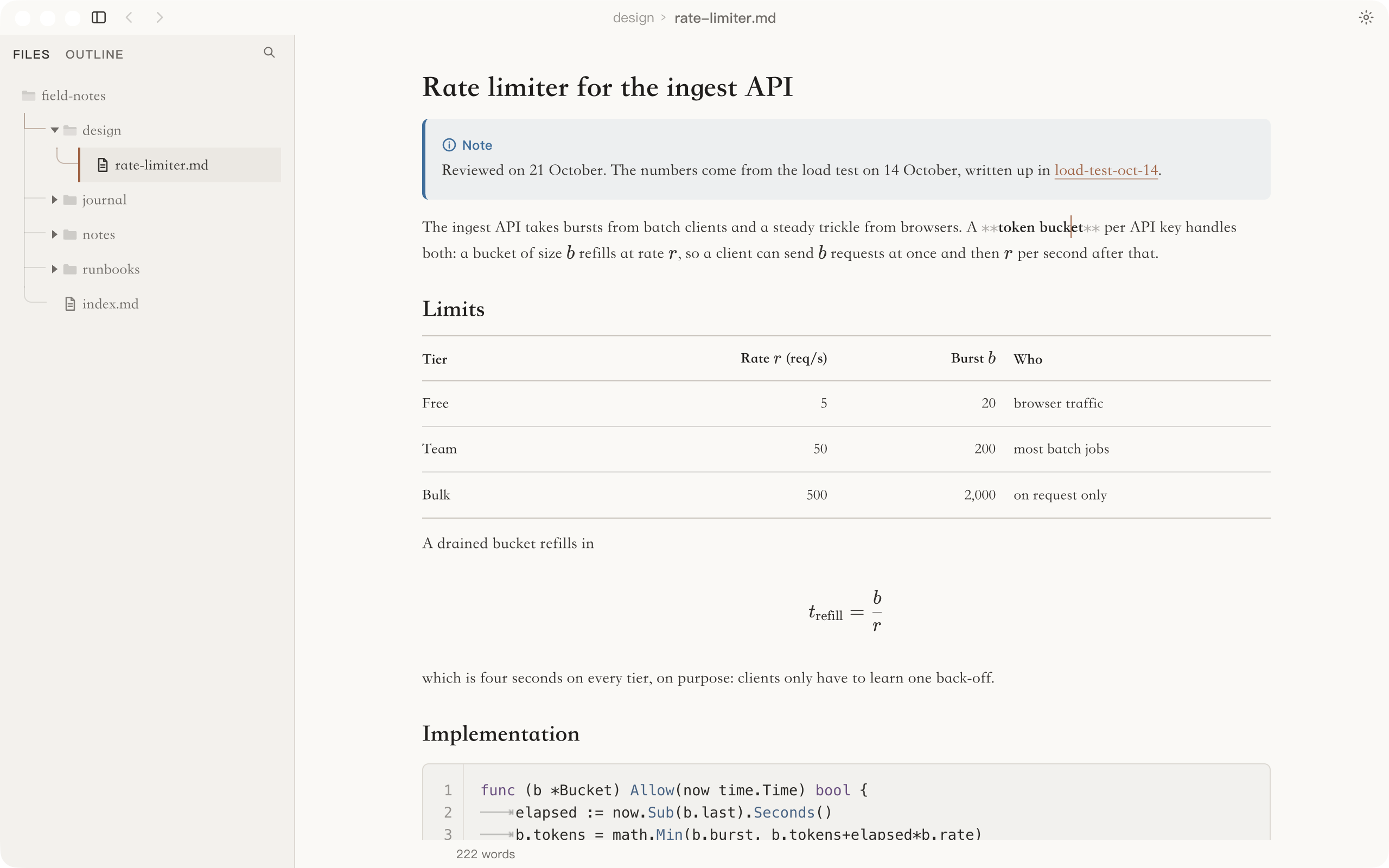
Noto is a desktop Markdown editor for people who keep a long-lived folder of notes, often under git, and who are used to Typora. You type into the formatted page. There is no preview pane beside the text and no read-only island of source you have to step into: headings, tables, task lists, math and fenced code are all edited where they stand. The Markdown markers show only in the block you are editing; Cmd+/ shows the whole note as source, and Cmd+Alt+/ shows one block.
One rule shapes the rest: saving rewrites only the blocks you changed. Most editors that render Markdown turn the document into a tree and write the tree back out, so opening and saving a note quietly changes parts you never touched: a list marker, _ emphasis turning into *, the padding in a table, trailing spaces. In a folder under git, each of those becomes a diff you did not write. Noto keeps each block’s original bytes and a hash, so a note you open and save without editing comes back byte for byte, line endings and trailing spaces included. If the file changed on disk while it was open, Noto refuses to write over it and offers a copy. Wiki links are drawn on the screen and never reach the file.
- For
- people who keep a folder of Markdown notes, often under git
- Runs on
- macOS (Apple silicon and Intel), Windows x64, Linux x64 (deb and rpm)
- Latest
- v0.0.3, 17 October 2026, the first release outside alpha
- License
- AGPL-3.0; its Markdown engine, md, is MIT
- Built with
- TypeScript, Electron, React and ProseMirror
- Install
- a download from the releases page; builds are unsigned for now
Typing into the page
Markers come and go with the caret
Move into a block and its Markdown appears, faintly, around the text it formats. Move out and it folds away again. The page reads like the finished note, yet nothing about how it is written is hidden for longer than it takes to click into it.
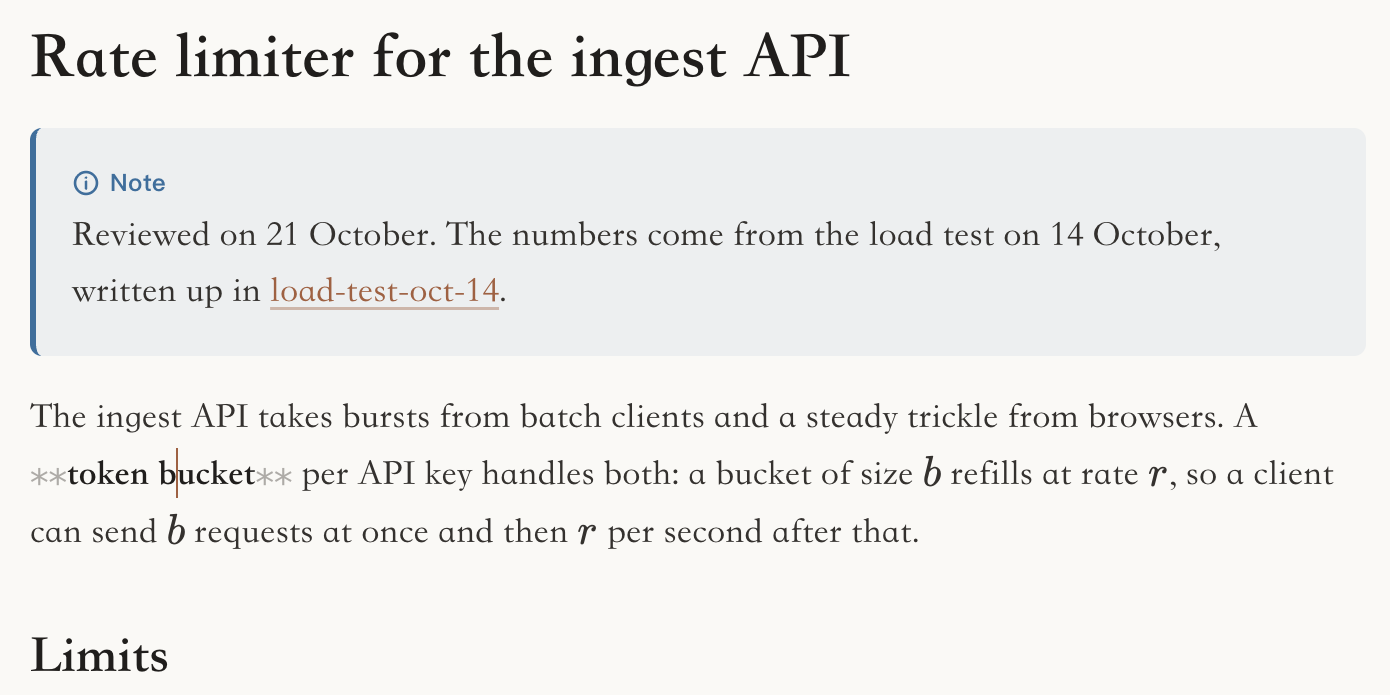
** markers. The callout above it and the heading below it stay formatted.Input rules work as you type: # and a space for a heading, - for a list, three backticks for a fence. Text size and line height are settings rather than fixed, and the writing column has three widths, from a reading column of up to 860 px, the width of Typora’s page, to the whole canvas beside the rail, stepped with Wider and Narrower in the menu.
Sometimes you want the Markdown itself: to fix the pipes in one table, or to see exactly where a fence ends. Noto has two ways back to the source, and they answer different needs.
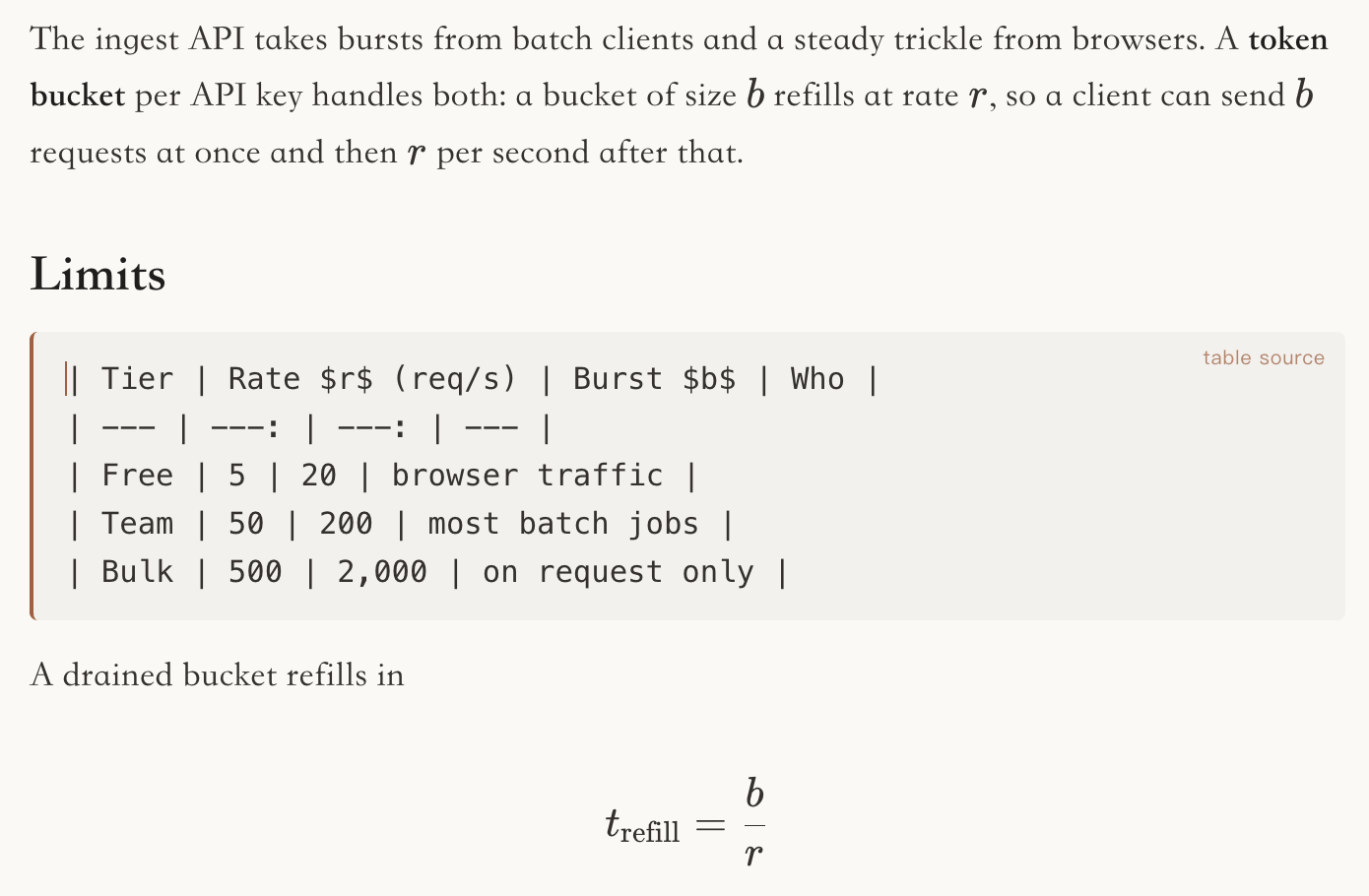
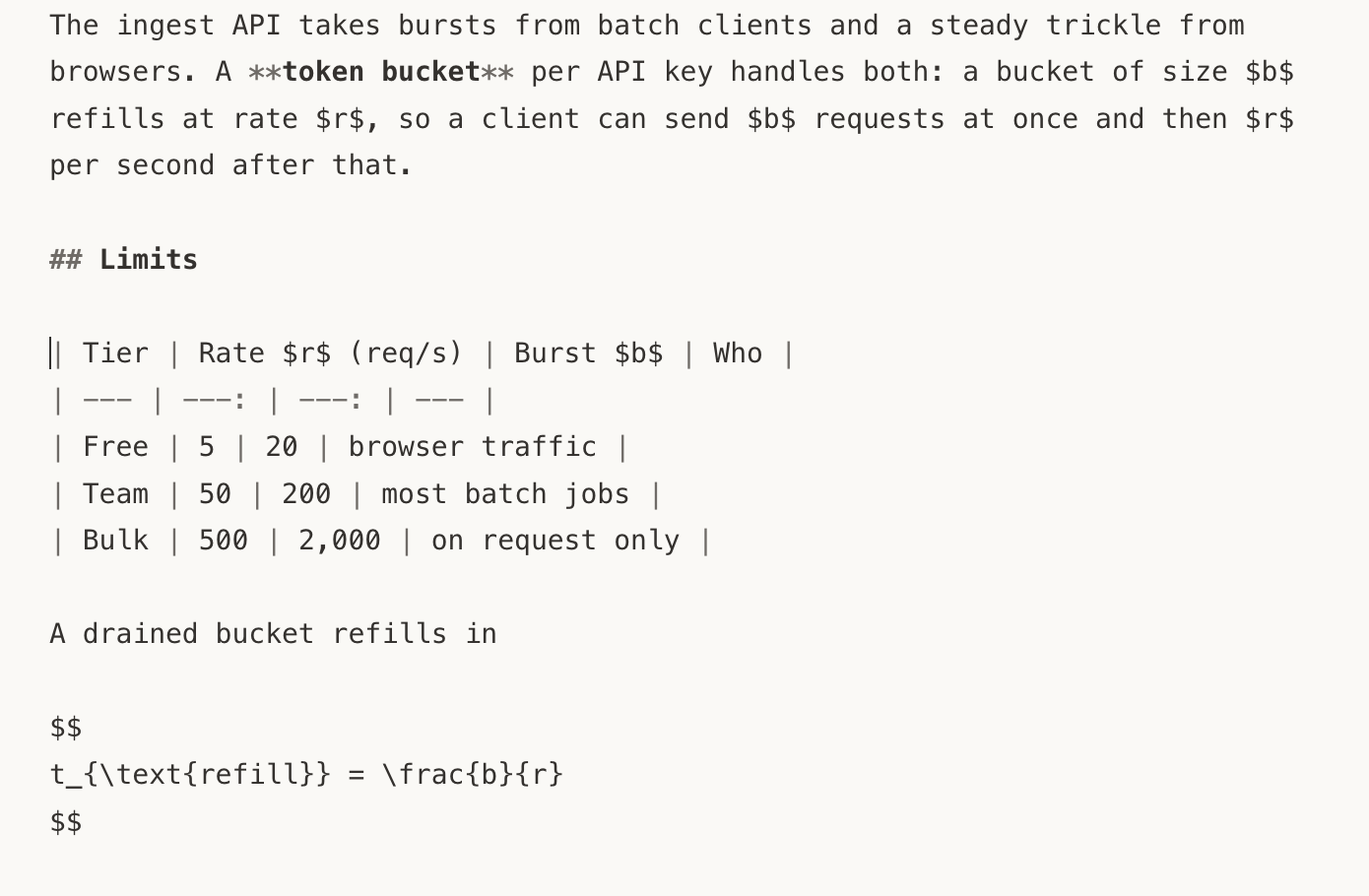
The per-block view is Noto’s own; Typora’s chord shows the whole note. It is the escape hatch for a long note: the note stays rendered while one paragraph, one table or one fence is fixed by hand. In the whole-note view the status line reads “Exact source preserved”, which is the save rule stated where you can see it.
The rest of the window stays quiet. The title bar carries the file name and nothing that is not an action you can take now: Save appears when there is something to save. Open notes sit behind a Recent strip in the status bar instead of a tab bar. Cmd+K opens the command palette, Cmd+, opens Settings, and saving automatically is there too, off by default, debounced against typing, and refused in exactly the cases where the Save button refuses.
Links that stay out of the file
Cmd+P is quick open. Type part of a note’s name or path and it ranks the whole folder by how well each note matches and by how often and how recently you opened it, so an empty box already shows the few notes you probably want. Enter opens the note; Alt+Enter writes a [[wiki link]] to it at the caret instead. Links render inline wherever they appear, and Cmd-click follows one.

The links are decorations on the text, not a node type in the editor’s document, so they have no way to reach the saved bytes. A note written in Noto opens the same in any other editor and shows the same plain [[a note]] on GitHub. Cmd+Shift+F searches inside notes rather than across their names, and Tab switches between the two. Opening a result lands on the match with the find bar already holding the query. The search reads the folder when you ask instead of keeping an index beside your notes.
When the file changes under you
Notes in a git folder change behind the editor’s back all the time: a pull, a rebase, a sync client, a script. The editor has to decide what to do when the copy on screen and the copy on disk disagree, and the wrong answer loses someone’s work.
Refuse, then offer a copy
Noto takes a change on disk silently only when nothing on screen is unsaved. With unsaved edits, the note is marked “Changed on disk” and the editor keeps your text. Press Save anyway and it refuses: “The file changed on disk, so it was not overwritten. Your work is still here.”
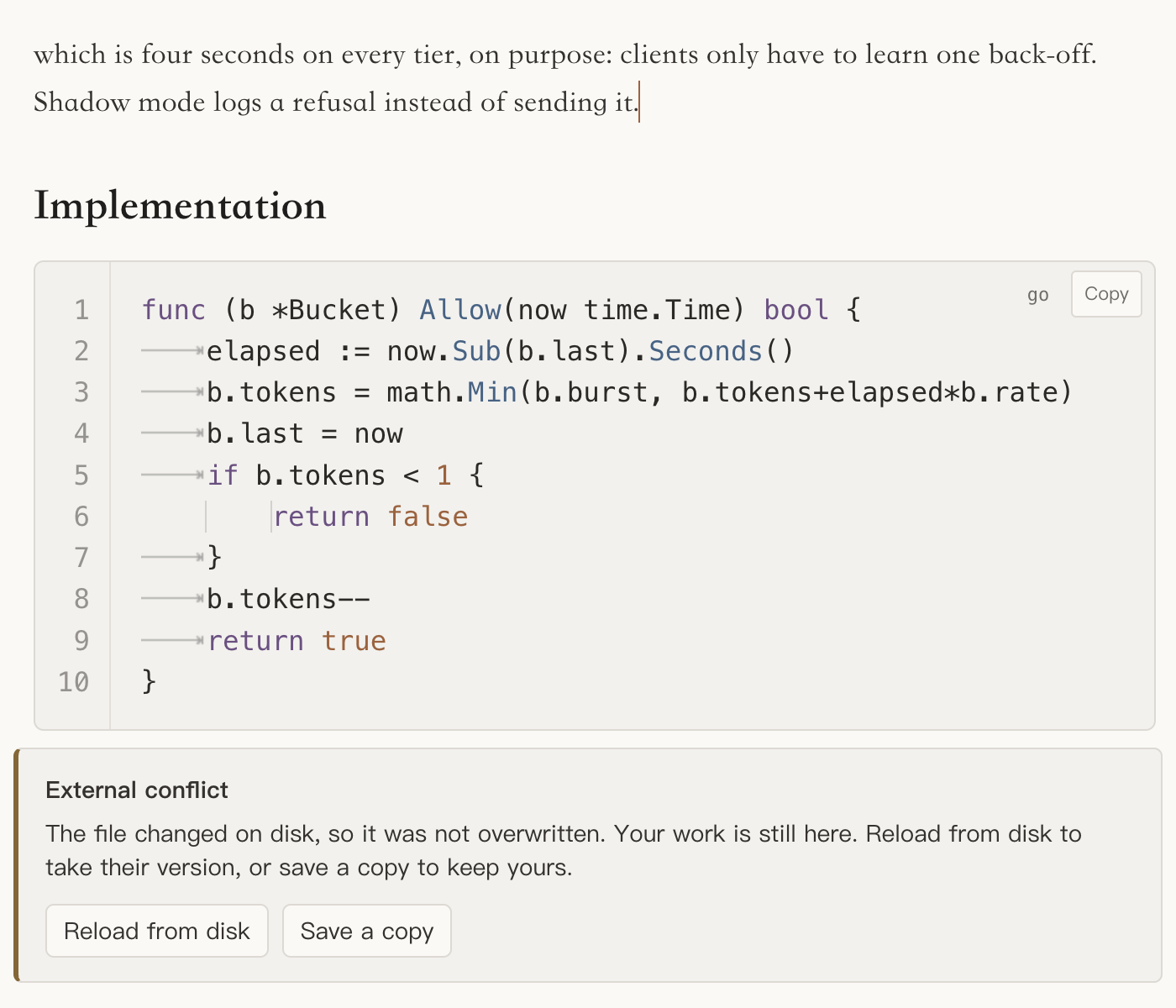
From there you choose. Reload from disk asks first, and its dialog offers “Save a Copy first…” before discarding anything. Save a copy asks where to write your version and leaves the original untouched.
The check uses the same record as the save. When Noto accepts a file, it remembers the bytes and their hash; a save is a transaction against that accepted revision, and the main process refuses it if the file on disk no longer matches. The behaviour is the same whether the change came from git, a sync tool or another editor, because Noto never has to guess who wrote it.
Plugins ask for what they use
Capabilities, granted by the main process
A plugin is a manifest plus code, and the manifest declares everything it will ever ask for: which runtime it runs in, which capabilities it needs, and which commands, hotkeys and settings it adds. Nothing is ambient.
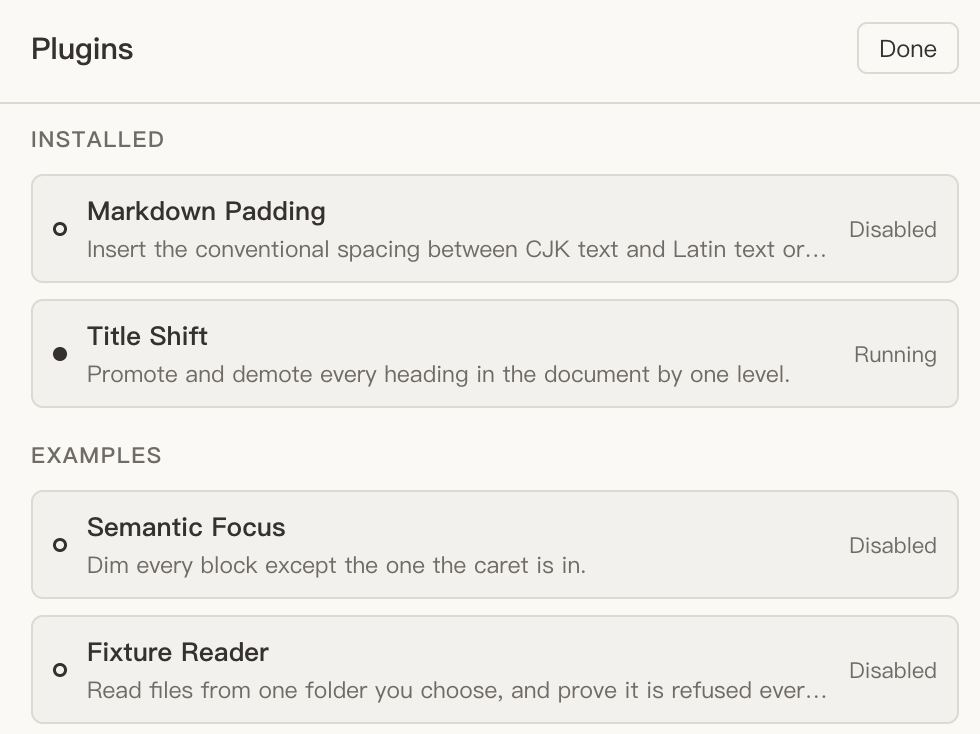
A renderer plugin may declare editor.read, editor.decorate and editor.transform; a service plugin may declare only filesystem.read. The main process grants each declared capability. File access is limited to one folder the reader chooses, can be taken back, and runs in a separate service process, so a plugin’s file reads never happen inside the editor window.
A renderer plugin sees the document through a port with three methods, and a call its manifest did not declare is refused at the host, as a fault against the plugin rather than an exception in the editor:
interface NotoEditorPort {
  getMarkdown(): string;                       // needs editor.read
  replaceMarkdown(markdown: string): boolean;  // needs editor.transform
  setSemanticFocus(enabled: boolean): void;    // needs editor.decorate
}
replaceMarkdown goes through the editor’s own transaction path, so a plugin’s change is one undo step and the save stays byte-exact for every block the replacement did not touch. Title Shift promotes and demotes every heading, and Markdown Padding inserts the conventional spacing between CJK text and Latin text; both are ports of plugins from Typora Plugin Lite. Semantic Focus and Fixture Reader are examples, one of each runtime, kept so a plugin author has a working plugin of each shape to read.
The model stops short of third-party code for now. Plugins ship inside the app: there is no plugins folder to drop a file into, and a new plugin is a pull request. A sandboxed runtime for untrusted code, with its own origin, session and content security policy, is built but the application never launches it. Settings are booleans, and plugins activate when an editor comes up. The plugin template has the manifest, the interfaces and the steps for that pull request.
Large notes
A long note used to be where Noto hurt most. The two weeks before v0.0.2-alpha.114 on 12 October went into opening them: fences, tables and display math far from the caret are drawn when they scroll into view instead of all at once, runs of off-screen blocks are kept as single placeholders, and the document crosses between the app’s processes once instead of twice.
Every tag runs the same benchmark on a GitHub-hosted macos-14 runner, a virtual Apple silicon Mac. It opens four generated documents in the packaged release build the way the file tree does, types in the middle of each and saves. This is the run for v0.0.3, the median of three runs per document:
| Document | Bytes | Blocks | Open | Keystroke | Idle lag | Save |
|---|---|---|---|---|---|---|
| small | 66,061 | 338 | 293 ms | 14.6 ms | 44 ms | 153 ms |
| medium | 524,952 | 2,742 | 485 ms | 10.6 ms | 36 ms | 203 ms |
| large | 2,097,661 | 10,982 | 435 ms | 15.2 ms | 44 ms | 219 ms |
| huge | 8,389,427 | 43,970 | 1,004 ms | 14.1 ms | 44 ms | 409 ms |
Open and save are timed by the harness driving the app. A keystroke is timed inside the page, from the edit to the next frame, and idle lag is the longest stall on the main thread after typing stops. Every keystroke stays inside one 60 Hz frame of 16.7 ms. On 29 September the same 8 MB document took ten seconds to open, 86 ms a keystroke and three seconds to save. These runs share a virtual machine, and two runs of one build have differed by up to 41%, so compare a number only with other runs of the same workflow. The table comes from the v0.0.3 run; method, corpus and the history of each fix are in docs/performance/measurements.md.
Against Typora, measured on 31 August
This was measured on a desk Mac with a clock inside each application, and with the parser Noto used before md became its engine. It has not been repeated since. At 66 KB the two were level, 268 ms against 282 ms. At 525 KB Typora was 2.6 times faster, 343 ms against 903 ms. At 2 MB and above Typora did not load the document at all: its editor still reported an empty document after three minutes, which was checked three separate ways. Noto took 4.0 s and 22.5 s for those two documents then. The method differs from the benchmark above, so the two sets of numbers do not compare directly.
Light and dark
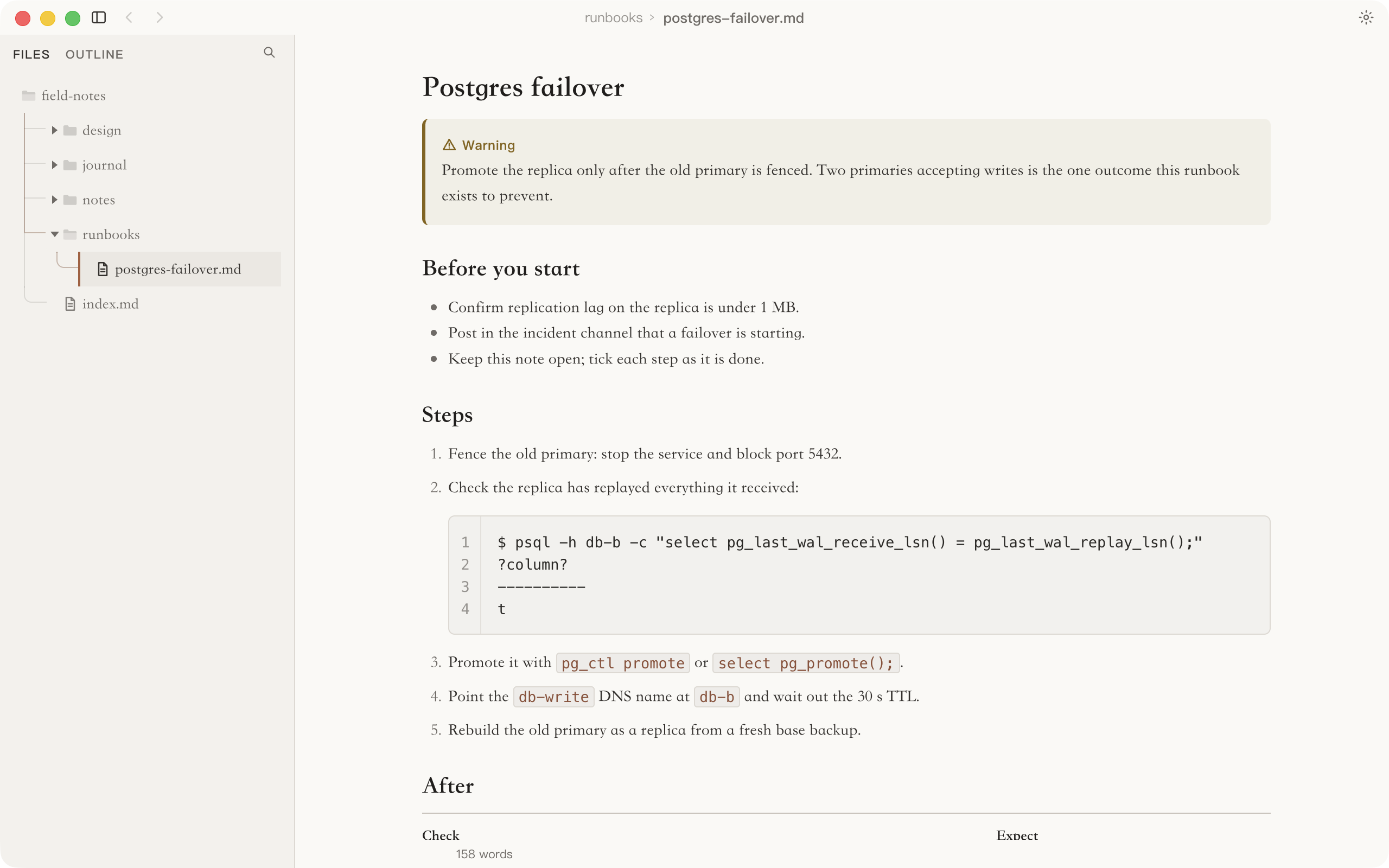
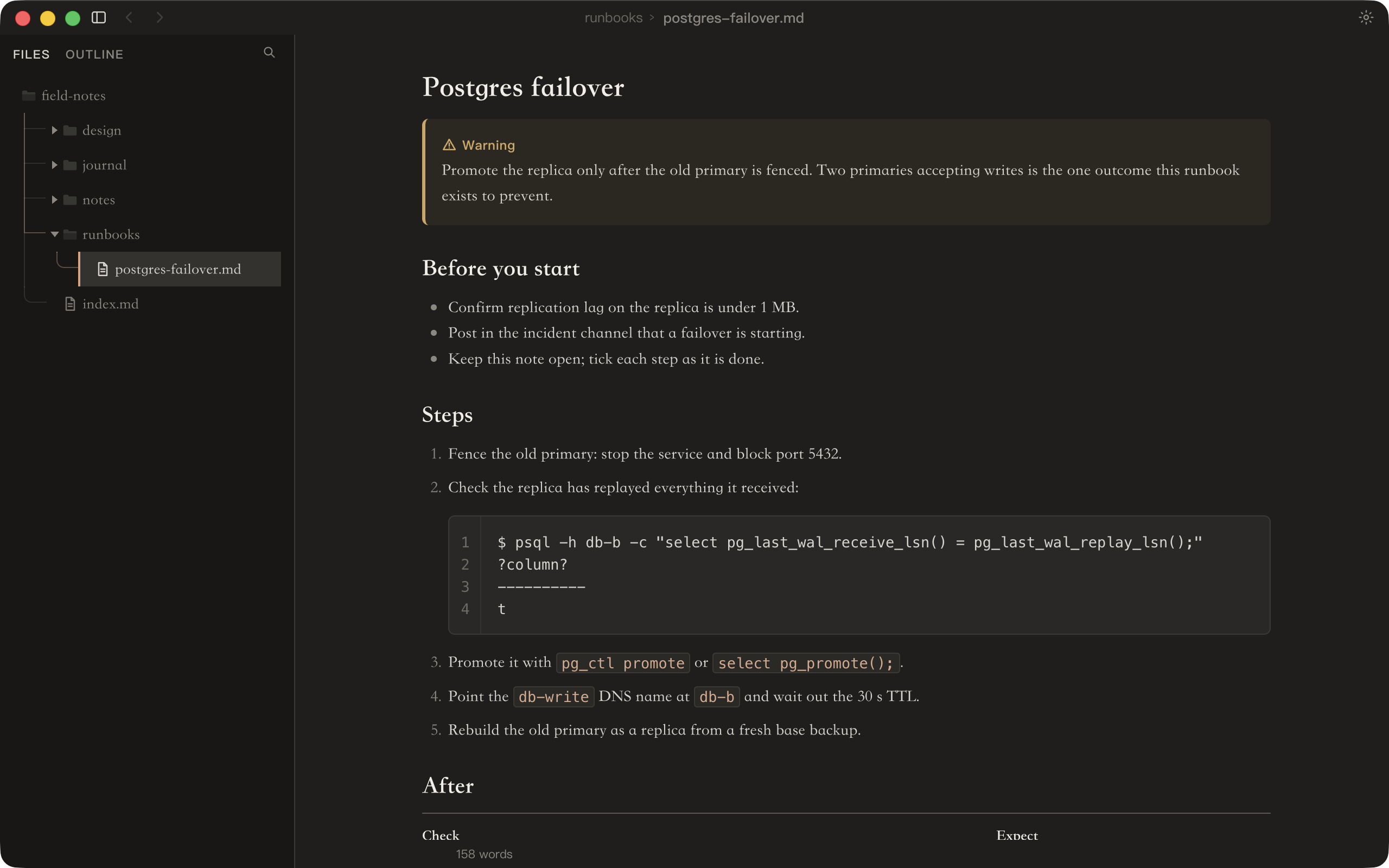
The theme follows the system unless you pick one. A custom stylesheet can be pointed at any absolute path in Settings and wins over the built-in theme, so a single :root { --accent: … } is enough to retheme the app without a plugin.
How it works
The main process owns the file: reading, block records, saving, recovery, the workspace, recent files and settings. The renderer owns the editor and never touches the filesystem. A separate service process handles plugin file access. The preload bridge between them exposes seven narrow, versioned APIs and validates every message on both sides.
The Markdown engine, md, was written for Noto: it re-reads only the region around an edit and gives back the same bytes it was given. When a note opens, md splits it into top-level blocks with exact offsets. Each block is recorded with its source, its kind and a SHA-256, then mapped onto a ProseMirror schema that keeps the original source beside the rendered form. That one representation is what makes both the byte-exact save and the per-block source view possible.
flowchart TB
  F["note.md on disk"] -->|"read and split into blocks"| M["main process<br/>block records and hashes"]
  M -->|"accepted revision"| R["renderer<br/>ProseMirror editor"]
  R -->|"save: kept runs + edited blocks"| M
  M -->|"untouched bytes sliced, edited blocks written,<br/>refused if the file changed"| F
A save does not send the document back. The renderer walks the top-level blocks and, for each one, asks whether it is still the node it was when the file was accepted. An untouched block sends no text at all. Runs of them cross to the main process as { keep, count }, which the main process expands against its own copy of the revision and fills from the original bytes. Only blocks you edited are serialized. The contract says so in its types:
export interface NotoUnit {
  readonly origin: NotoBlockOrigin | null;
  /**
   * The block's markdown, or null when it is unchanged from its origin.
   *
   * Null is not an optimization detail leaking into the contract: it is the
   * difference between "this block now reads like this" and "nobody touched
   * this block".
   */
  readonly markdown: string | null;
}
Everything else follows from taking that null seriously. Line endings are left as the file had them unless a conversion is asked for explicitly, because converting them rewrites every line. An emptied paragraph is left out of the save, since Markdown has no empty paragraph. When deleting the paragraph between two lists would make them read back as one list, the second is written with the other marker, * after -, because that is what keeps them apart in CommonMark.
How it is tested
On the main branch the unit suite has 2,772 tests. The end-to-end suite has 273 tests in 83 files, and it drives the packaged application, not a development server, through its real interface with Playwright. Continuous integration builds that package and runs the whole suite on macos-14, windows-latest and ubuntu-24.04 (under Xvfb) for every pull request and every push to main. The things most likely to break in an Electron app are exactly the things a development server does not exercise: the preload bridge, the fuses, what is inside the asar, and the application menu.
Windows was unproven until the first run that passed there, and that run found two faults nobody could have read out of the code. Every plugin came up needing recovery, because a durability step that only POSIX has was treated as a failure. And the remote control refused the token its own Settings pane had shown, because file permissions mean nothing there and the token was replaced on every read.
Limits
Warning
The builds are unsigned. On macOS they are ad-hoc signed and not notarized, and there is no dmg; on Windows the installer is not code-signed. Each OS warns once on a fresh download. From the release after v0.0.3 until builds are signed, a found update opens its download page instead of installing itself.
Noto is young. v0.0.1 was tagged on 5 September 2026, and 113 tagged alphas of 0.0.2 came before v0.0.3 on 17 October. It is used daily on macOS; Windows and Linux are proven by the test suite rather than by living in them. The changelog is candid about where the risk sits: most fixes after v0.0.3 are about edited paragraphs that saved an escape wrongly, such as $_GET reopening as math. Those are bugs in blocks you changed. Blocks you did not touch are copied from the original bytes and never pass through that code.
Install
- Download a build. The releases page has
Noto-0.0.3-macos-arm64.zipandNoto-0.0.3-macos-x64.zipfor Macs,NotoSetup-0.0.3.exefor Windows, andnoto_0.0.3_amd64.debandnoto-0.0.3-1.x86_64.rpmfor Linux. - Open it once on macOS. Unzip, double-click
Noto.appand click Done when macOS says it cannot check it. Then open System Settings, Privacy & Security, and click Open Anyway. From the folder that holds the app,xattr -cr Noto.app && open Noto.appdoes the same. - Or install it on Windows or Linux. On Windows, when SmartScreen appears, choose More info and then Run anyway. On Linux,
sudo apt install ./noto_0.0.3_amd64.deborsudo rpm -i noto-0.0.3-1.x86_64.rpm. - Open your notes folder. Cmd+Alt+O opens a folder as the workspace tree, Cmd+P finds a note, and Cmd+, opens Settings. On Windows and Linux, read Control for Command.
To run it from source you need Node 22 and pnpm 11; newer Node majors are refused on purpose, because packaging is pinned to the runtime it was verified against. The second line fetches Electron’s own binary, which pnpm 11 does not run the install script for:
$ pnpm install
$ node node_modules/electron/install.js
$ pnpm start- Site, guides and downloads: roobli.github.io/Noto.docs
- Source: github.com/roobli/Noto (AGPL-3.0)
- Plugin template: github.com/roobli/noto-plugin-template